
Logitech MX Keypad review: Nine keys, endless possibilities


This article contains affiliate links. We may earn a small commission on items purchased through this article, but that does not affect our editorial judgement.
Nine little screens might sound like an unnecessary addition to a desk already covered in buttons. But Logitech’s wonderfully customisable MX Keypad has become one of my most-used gadgets
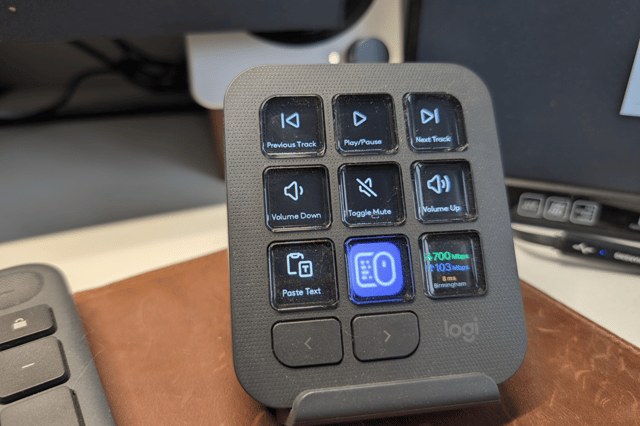
How's this for a piece of tech you never knew you needed? It's the Logitech MX Keypad, and it's a neat little desktop controller with nine customisable LCD keys. Each can display an icon for the action you’ve assigned to it, giving you a visual shortcut panel alongside your usual keyboard and mouse.
Now, I know what you're thinking, you already have a keyboard with lots of keys, and some of them have shortcuts, so what do you need a supplementary keypad for? I was thinking exactly the same, but now I've lived with it for a few weeks, I can't bear to think of it leaving my side.
It costs £89.99, and Logitech is pitching it at developers, gamers, photo editors, and even heavy media users.
There are integrations for coding tools and AI assistants, but you can program it to do pretty much anything, it's one of the most customisable and adaptable pieces of tech I've ever used.
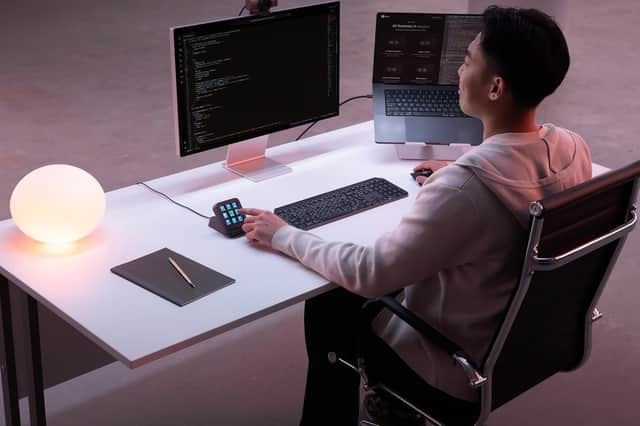
The question that has to be asked, is whether you think the extra buttons, essentially all shortcuts, will become an indispensable part of your desk, or another gadget you enthusiastically configure and then forget to use.
But it's an undeniably brilliant little setup, because behind each transparent button is a little colour screen, and you can assign each button and screen to an array of functions and icons. You can even download icon packs, including Windows 95 themes.
There are nine keys, but you're not restricted to just nine at all, because there are scrollable pages of keys, and the key sets can be linked to profiles, which switch over automatically when you're in an app.
This means you can have a phenomenal number of shortcuts locked in, with different sets for Photoshop, a set for Chrome browsing, one for Microsoft Office, and another for your favourite game. It's that clever and powerful.
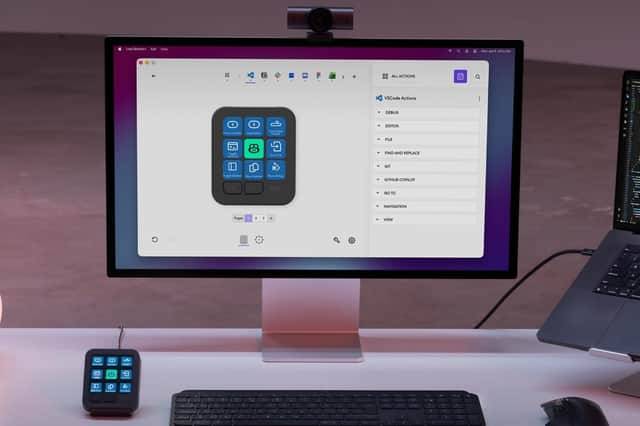
To set it up, you link it to the rather excellent Logi Options+ app, and once it's up and running, it just powers up and down with your computer, which also acts as a USB power source.
What I liked about the Logitech MX Keypad
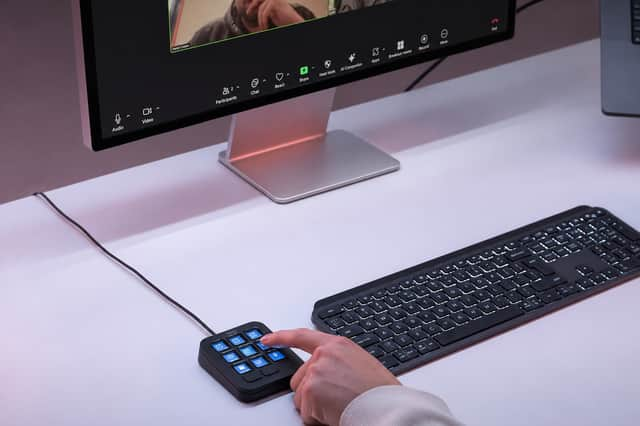
What I love most about the MX Keypad is the little screens. Having so many shortcuts, macros, and controls at your fingertips is all well and good, but a quick visual cue is definitely something you need to keep track of what you've set up and where. Being able to pick from a vast library of icons is brilliant, and you can even make your own.
If it's all sounding a bit complicated to set up, you can actually download ready made profiles, and there are loads to choose from. Essentially you're copying someone else's homework.
The other important thing to consider is you can set it up as you go along. For me, I've got a couple of macros, which instantly add a block of text I use often, to save me typing it out, and then I've got a few media controls, a shortcut to two of my CCTV cameras, and a button that shows my internet speed on the keypad at a single press.
For developers, there’s more specialised functionality. Logitech offers integrations for tools including VS Code, GitHub Copilot and Claude Code, while its software development kit allows people to build their own integrations.
There's a mountain of Photoshop tools, and plenty of games are catered for, including some of the big RPGs and flight sims.
What I didn’t like about the Logitech MX Keypad
The obvious sticking point is that £89.99 buys convenience, and arguably something you can easily live without.
Your computer can already perform the tasks you’re assigning to it, and if you've got a trick keyboard, you'll already have customisable keys which can perform a set of commands at a stroke. So the value of this second keypad depends on how frequently those shortcuts would actually help, and how far you might want to reach for them.
It can also be a bit of a time sponge. A customisable controller needs decisions about what to put where, and the temptation will be to keep rearranging it. I've lost many an evening to getting it just right, only to start using it in the morning and realising I've made a complete pig's ear of something, then I'll lose another hour moving it all around again. This is my fault, not Logitech's fault, and it's actually very easy to configure, but if you're a bit obsessive like me, prepare for this to become a bit of a side hobby.
The only other niggle I could pick out is the cloth pad the supplied desk stand sits on isn't quite tacky enough. On a shiny desk, it'll slide away as you stab at the keys. Use it horizontally, without the pad, and this isn't a problem, but the stand makes it much easier to prod at, so it's a shame it doesn't stay in its spot very well.
Overall verdict: Should you buy a Logitech MX Keypad?
As I've said, I wouldn't want to be without this little thing now, I use it constantly, for various different shortcuts.
Even though I can (and do) use some of the keys on my Logitech keyboard to perform exactly the same functions, the MX Keypad is more obvious, and more tactile in an old-fashioned switchboard sort of way.
But I’d advise you to buy it with a job in mind. Think about the actions you repeat, check what Logitech’s software can do with them, and decide whether easier access would genuinely improve your day.
If you can already picture those nine buttons earning their place, £89.99 starts to look reasonable. If you’re hoping the keypad will somehow make you organised simply by sitting beside your keyboard, that’s rather a lot to ask of nine little screens.